
Map your deck with the Configurator.
The desktop app that drives userdeck. Bind keys and text, chain macros, launch programs, run a soundboard that plays into your mic, and flash firmware, all from one window. Free, Windows.
Every cell, your way.
userdeck is a 3x6 grid across 5 pages. Each non-reserved cell binds to anything below, pushed to the deck the moment you hit Apply.
Keys & text
Any chord (Ctrl / Shift / Alt / Win + key) or a literal string of keystrokes. Record a combo or type a sequence.
Media keys
Play / Pause, Mute, Volume, Mic mute, Brightness, Screenshot window, and more, mapped to a button.
System & power
Sleep / Wake as a single toggle, plus Power On / Off, with the right BIOS and Device Manager wake settings.
Launch programs
Map a short name like obs to any app from your Start menu. Path, args, and working dir auto-fill.
Sequences (macros)
Chain up to 8 sub-actions with a 1 ms gap. Fire Win+Shift+S, then type a filename. Reorder and mix any kind.
Soundboard pads
Flip the grid into 80 sound pads. Press one and its audio plays into your mic so your whole call hears it.
Hold Confirm to flip.
Press and hold Confirm for one second and the whole deck switches modes. Hold again to switch back.
Keys, macros & launchers
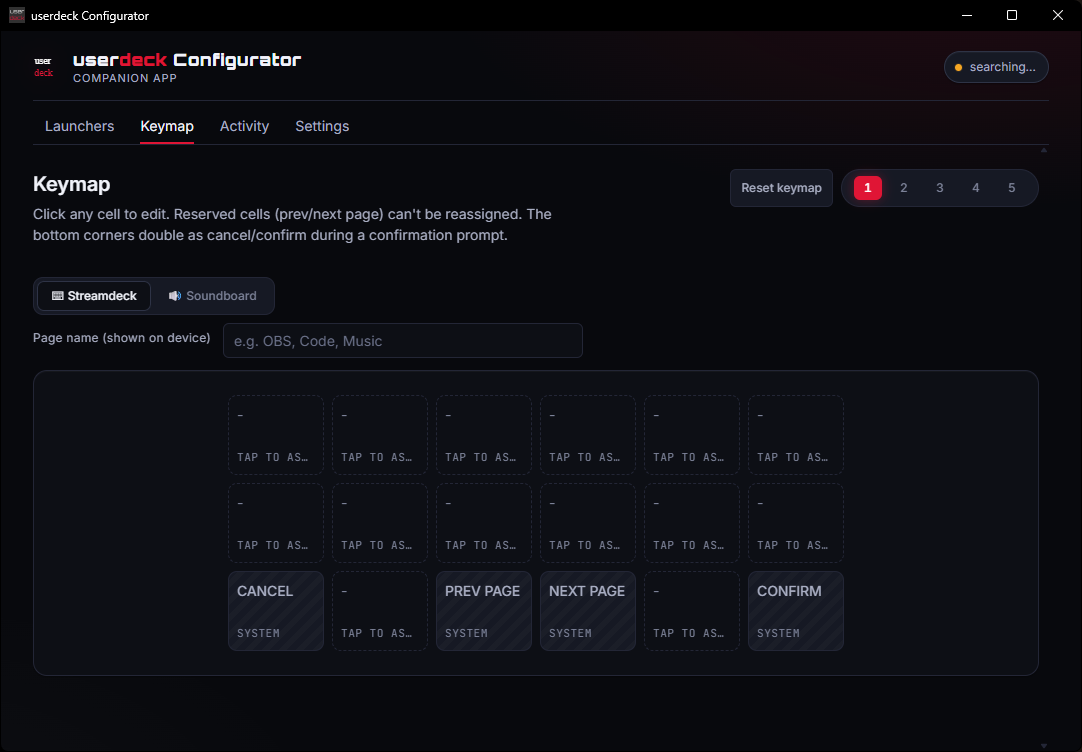
The 5-page grid runs your bindings: key chords, typed text, media keys, system actions, launchers, and multi-step sequences. Two buttons are reserved as prev / next page, and the bottom corners become cancel / confirm when a binding asks for it.
Pads into your mic
The same grid becomes sound pads. The Configurator mixes the audio host-side, so it keeps your real voice mixed in alongside any pad. Needs the free VB-CABLE virtual mic, which one click in Settings installs for you.
Four tabs, the whole deck.
Launchers, Keymap, Activity, and Settings. Everything you touch to set the deck up lives behind these four tabs.
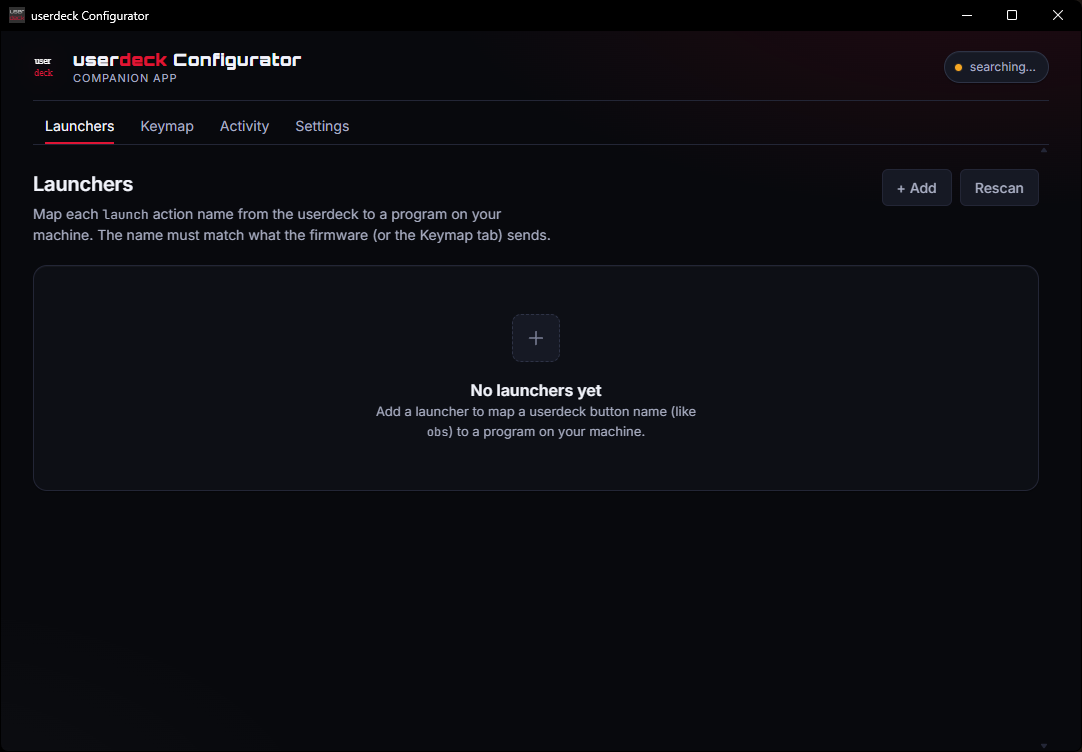
Point a name at a program
Map a short name like obs to any app on your machine. The Keymap's Launch program action points at these names, Rescan pulls your Start menu, and Test fires a launcher on the spot.
Bind every cell, across 5 pages
Click any cell to bind it. Reserved prev / next page cells and the cancel / confirm corners are marked for you. Flip the toggle at the top to turn the same grid into Soundboard pads.
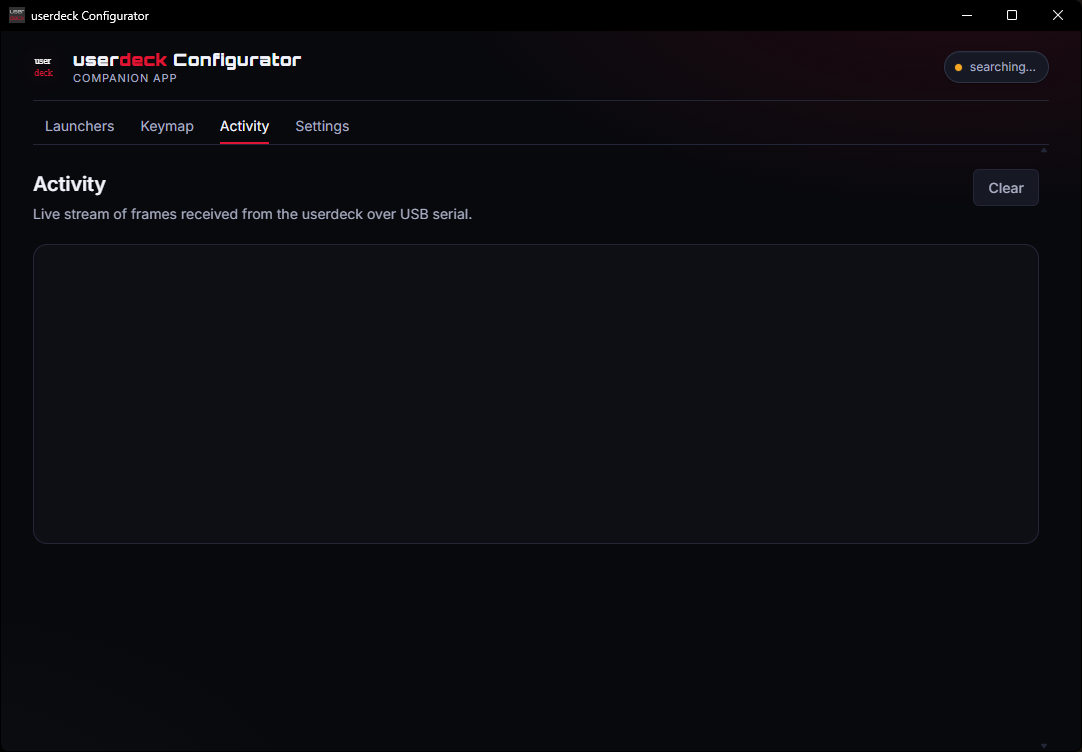
Watch the deck talk
A live stream of every frame the deck sends over USB serial. Press a button and watch the event land, the quickest way to check your wiring or confirm a binding actually fired.
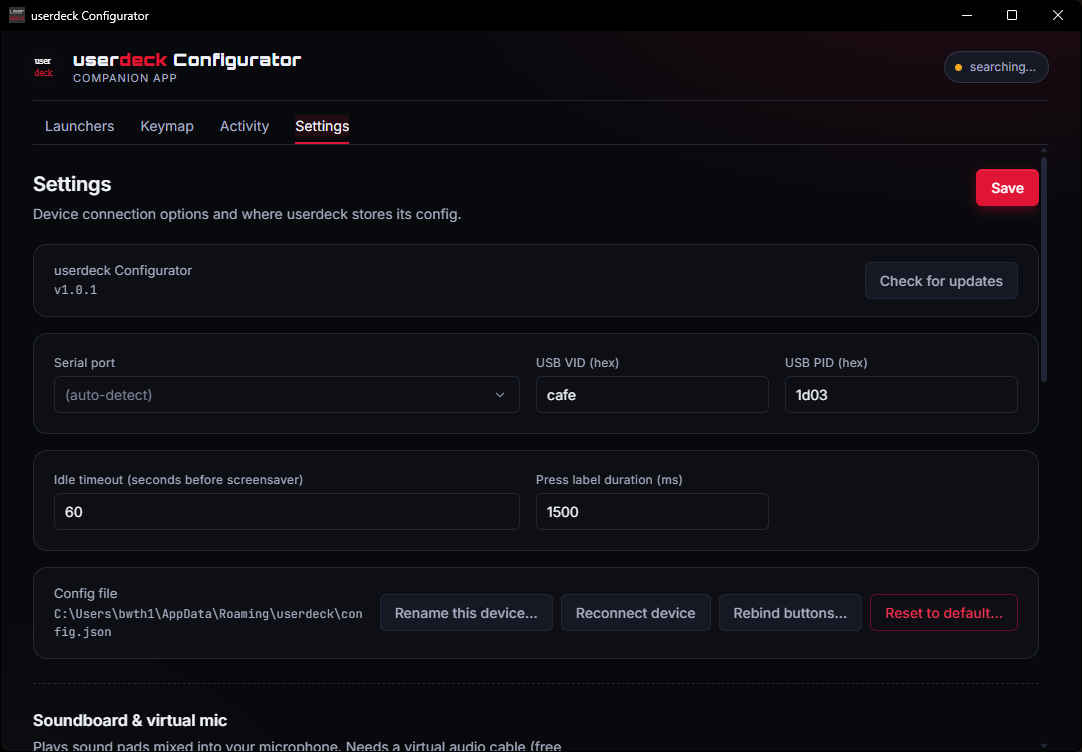
IDs, firmware & the soundboard
USB VID / PID, idle timeout, press-label duration, firmware flashing, rename / reconnect / reset the device, and the full soundboard mic and virtual-cable setup, all in one tab.
Everything the window does.
The window at a glance
- Status pill shows live connection state:
searching..., a COM port, orN devices. - Device tab strip appears when 2+ decks are plugged in. Each remembers its own keymap, launchers, and bindings.
- Launchers map a name to a program. The Keymap's Launch program action points at those names.
- Keymap edits each cell per page. Toggle between Streamdeck and Soundboard at the top.
- Activity is a live JSON stream from the device for diagnosing button behaviour.
- Settings holds USB IDs, idle timeout, press-label duration, rename / forget device, firmware flashing, and the soundboard mic and cable setup.
Soundboard setup
A one-time setup routes pad audio into your microphone so other apps hear it with your voice:
- Open Settings, Soundboard & virtual mic and click Install virtual cable to grab the free VB-CABLE driver (one Windows prompt).
- The app auto-picks your default mic as input and CABLE Input as output, then enables itself once a cable is detected.
- In Discord or OBS, set the microphone to CABLE Output. That is the one manual step.
Add sounds from the Keymap, Soundboard toggle: click a pad to assign a file (mp3, wav, ogg, flac, m4a, aac, opus) with a label and volume, or drag and drop a folder to auto-fill pads across all 5 pages. Master volume, mic passthrough, and monitor audio (off each launch, use headphones) all live in Settings.
Firmware flashing
Firmware ships inside the Configurator. There is nothing to download separately, and the bundled UF2 is the latest every install.
- Flash the active device: Settings, Firmware, Flash reboots the deck into BOOTSEL and drops the UF2 automatically.
- Fresh Pico: plug one in holding BOOTSEL and a New device detected modal offers to install userdeck onto it.
- Custom UF2: Choose .uf2 points at any file, and Send to BOOTSEL reboots without flashing.
Multi-device support
Built more than one userdeck? Each board has a unique factory ID, so plugging a second one in adds it to the device strip.
- The active tab scopes everything. Launchers, Keymap, and Settings all follow the selected device.
- Right-click a device pill to Switch, Rename, Copy keymap from another deck, or Forget it.
- Physical button bindings are unique per board and are never copied between devices.
Download the Configurator.
Windows only. Pick the installer you prefer. Both bundle the latest firmware and pull straight from the newest GitHub release.
Both link to the latest GitHub release. The installer isn't code-signed yet, so SmartScreen may warn the first time. Tap More info, then Run anyway.